Appearance
Plesk Integration
This guide explains how the webinice Plesk Extension connects Plesk (admin and customer area) with the webinice AI Website Builder.
The extension provides a clean entry point into webinice with service-plan-based access control and short-lived login links.
What the Extension Does
- Adds a fixed admin button in Plesk that opens:
https://app.webinice.net/whitelabeladmin/ - Optionally adds a customer button in Plesk
- Shows the customer button only if the subscription's service plan includes the additional service item
webinice_builder - Creates a short-lived login link when the customer clicks the button and redirects the user to webinice (SSO-like flow)
- Triggers automatic sync in webinice after login: domains/subdomains and deployment credentials are loaded from Plesk
- Keeps the extension focused on access/redirect; data sync and deployment mapping happen inside webinice via Plesk REST/XML API
Architecture Overview
- Admin installs and configures the extension in Plesk.
- Admin enables
webinice_builderin selected service plans. - Eligible customer sees the AI Builder button in their Plesk UI.
- Clicking the button triggers a short-lived login link and redirects to webinice.
- Inside webinice, domains/subdomains and deployment credentials are synchronized via Plesk API.
Configuration in Plesk
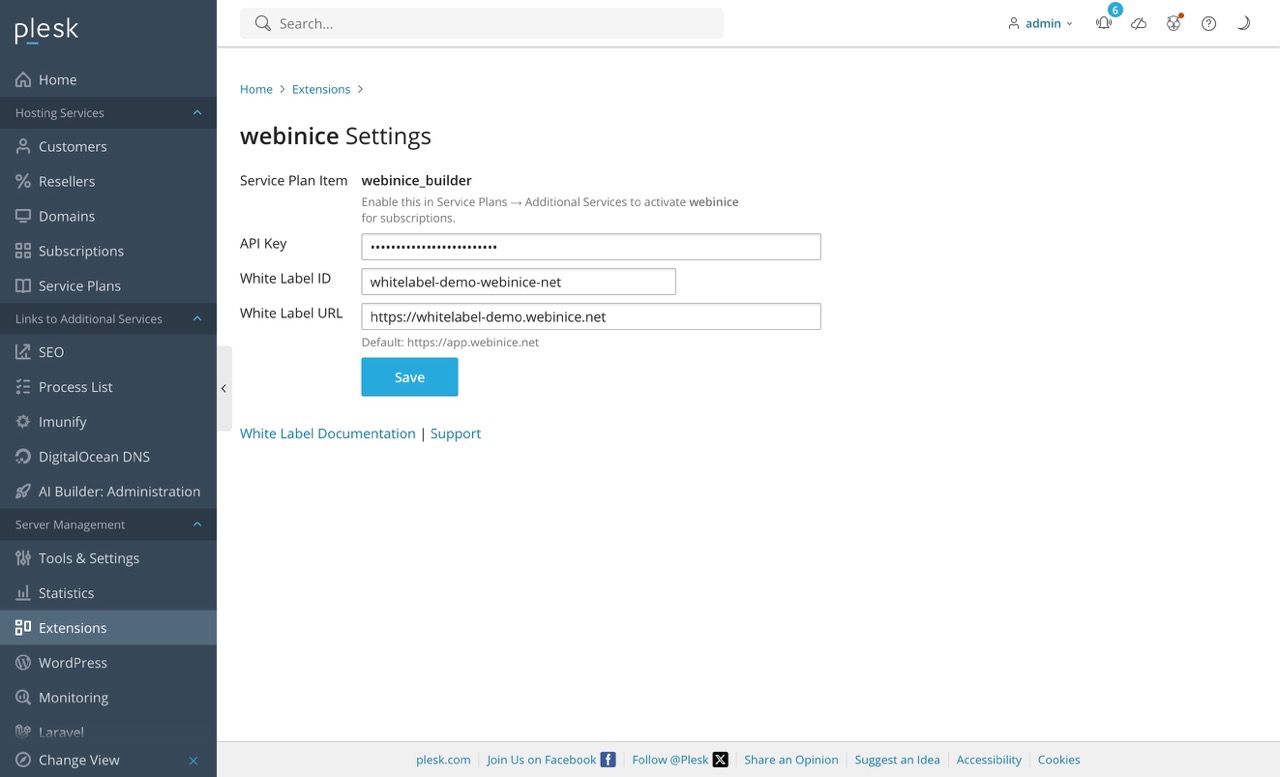
Open the extension settings and configure:
API Key: your webinice white-label API keyWhite Label ID: your white-label identifierWhite Label URL: your white-label app URL (defaults tohttps://app.webinice.netif not customized)
Enable Access via Service Plans
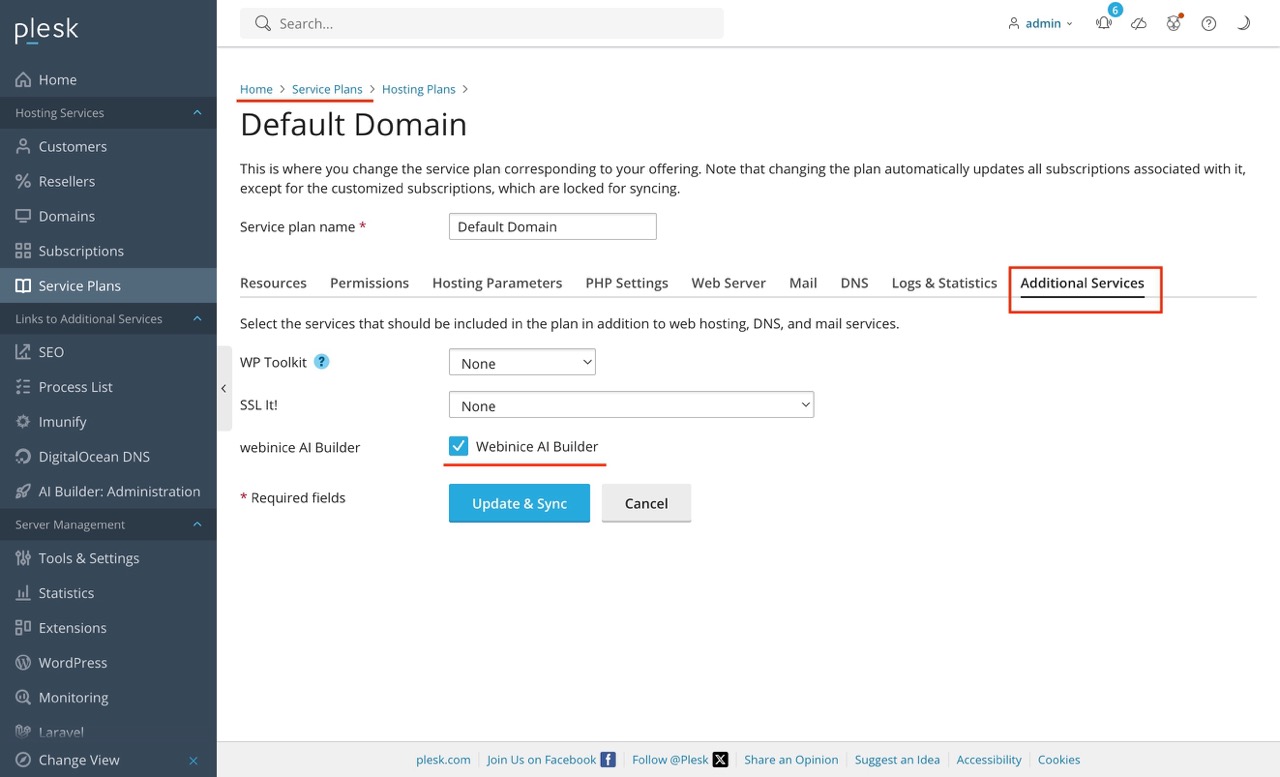
To make the customer button visible, enable the additional service for the plan:
- Open
Service Plansin Plesk. - Edit the plan.
- Go to
Additional Services. - Enable Webinice AI Builder (mapped to
webinice_builder). - Save and sync the plan.
Admin Experience
After installation, admins can access the extension from Extensions and from the admin sidebar.
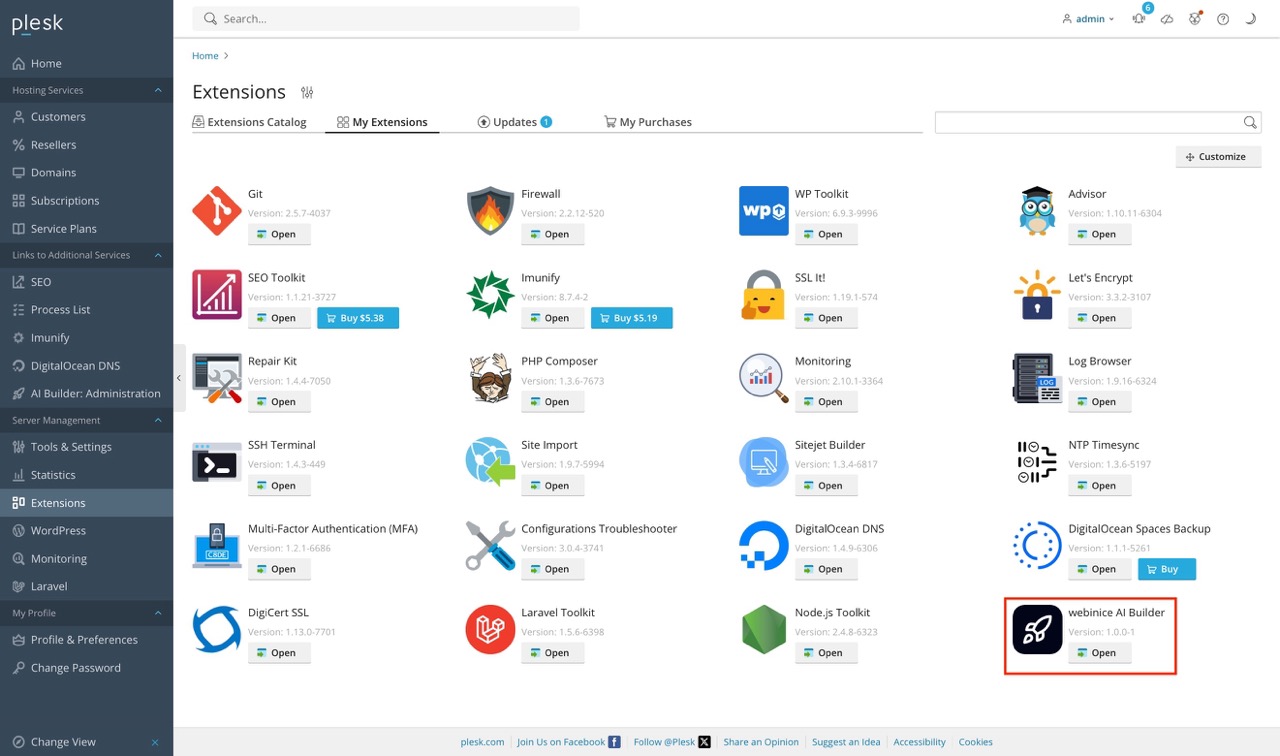
In the extensions list, admins can open the webinice AI Builder extension and access its settings.
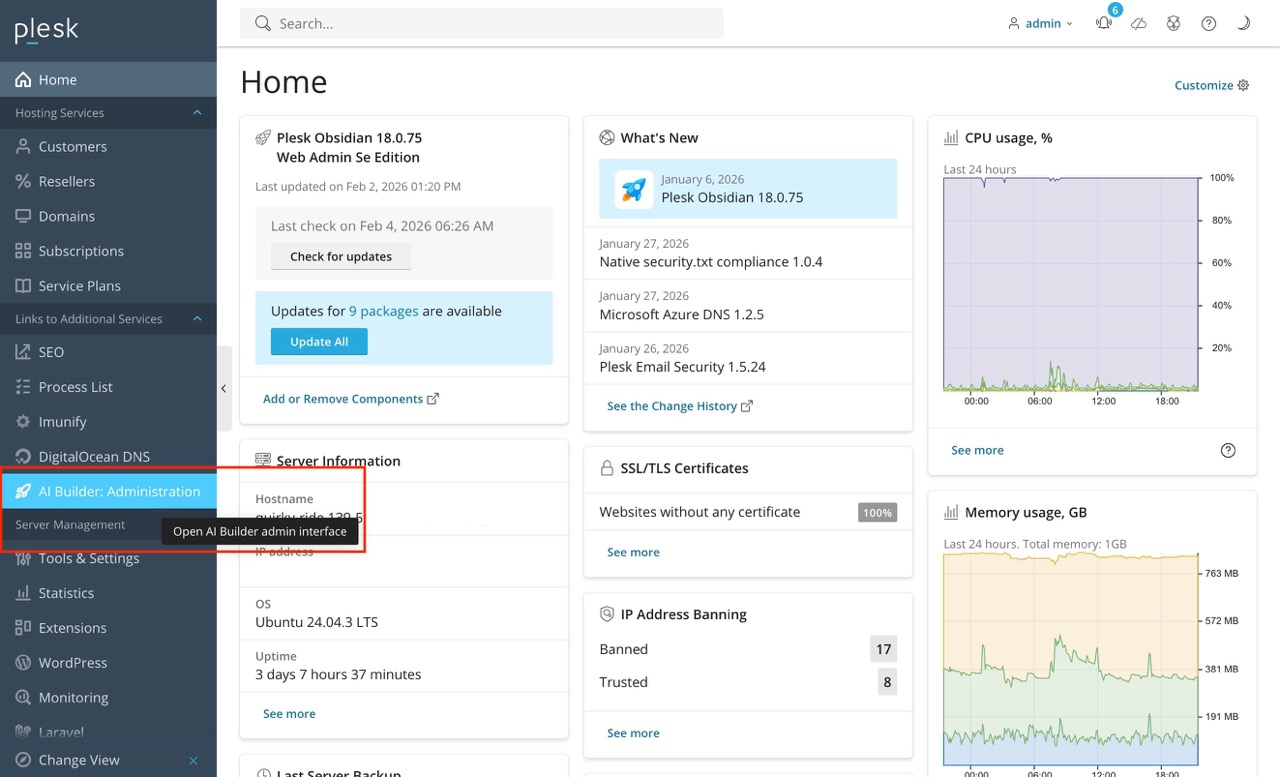
The admin entry always opens:
https://app.webinice.net/whitelabeladmin/
Customer Experience
When a customer subscription is eligible (service plan item active), the customer sees an AI Builder entry in the left menu.
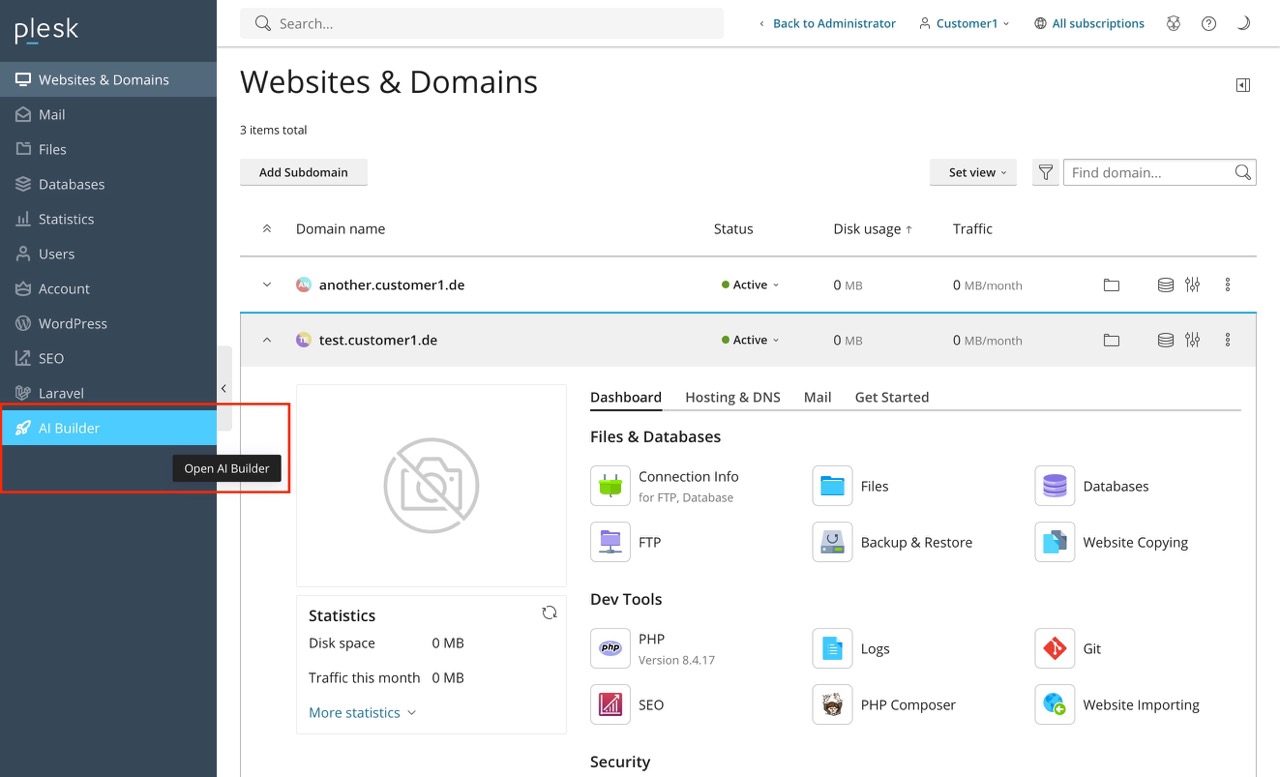
On click, the extension generates a short-lived login link and redirects the user to webinice.
Domain/Subdomain Sync
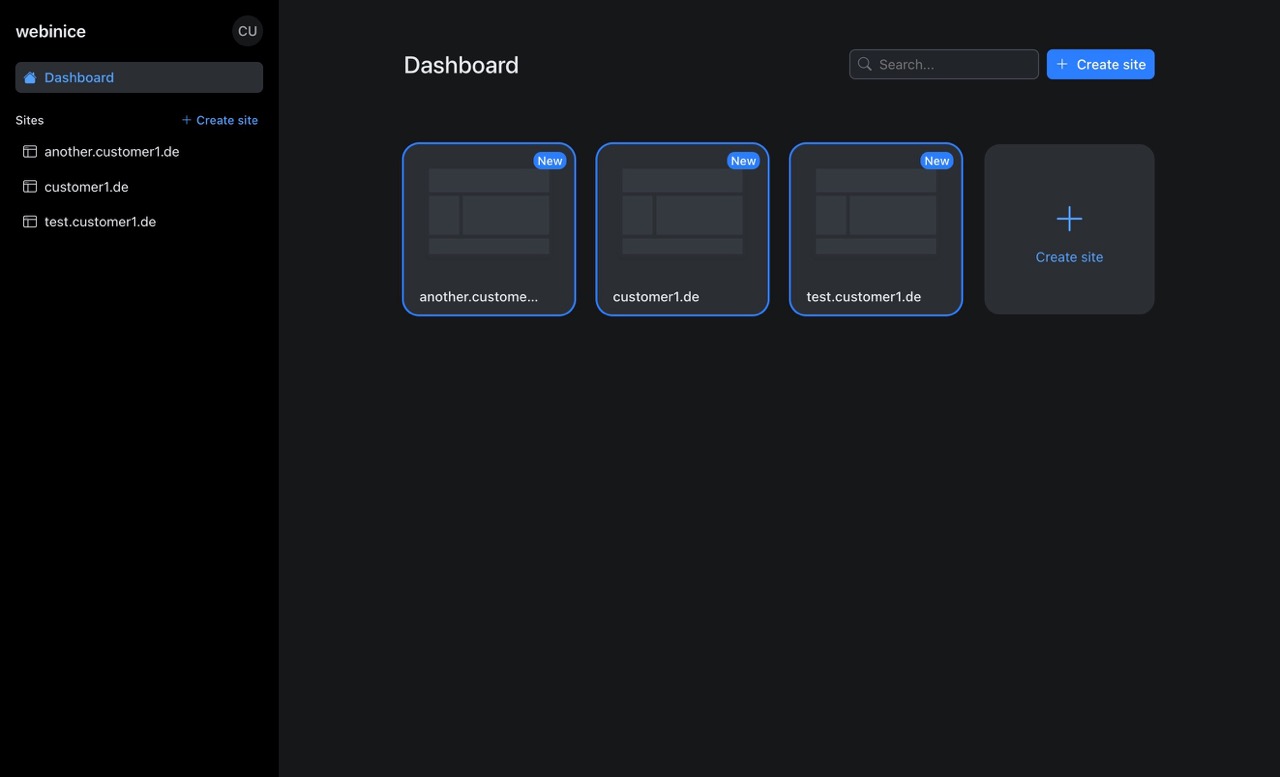
After the user is redirected, synchronization is handled inside webinice:
- webinice reads domains/subdomains via Plesk REST/XML API
- webinice also syncs the related deployment credentials for those domains
- extension-side sync is not required
- synced domains become available as webinice sites/projects
Publishing Without Manual FTP Setup
After SSO-like login from Plesk, the user can publish without manually entering FTP data in webinice:
- domain + deployment target are pre-synced from Plesk
- webinice uses the synced credentials for deployment
- the user can deploy with one click via Publish
Security Notes
- Access is gated by service plans (
webinice_builder). - Login links are short-lived and intended for immediate redirect use.
- Keep API keys in extension settings restricted to the minimum required scope.
- Deployment credentials are synchronized from Plesk after user login; users do not need to enter FTP data manually.
Limitations
- Domain sync is performed by webinice after login, not by the extension itself.
- If a subscription is not synced to a plan with
webinice_builder, the customer button stays hidden.
Troubleshooting
Customer does not see the AI Builder button
- Check the subscription's service plan.
- Verify
Additional Servicesincludeswebinice_builder. - Re-sync the service plan if needed.
Redirect/login does not work
- Verify API key, White Label ID, and White Label URL in extension settings.
- Ensure server time is correct (important for short-lived links).
- Check extension and Plesk logs for failed link generation.
Domains are missing in webinice
- Confirm Plesk API access from webinice environment.
- Re-run sync from webinice side.
- Validate that domains/subdomains exist and are active in the Plesk subscription.